
Table of Contents
Why Your Router Is a High-Value Target: a hacked router doesn’t just expose your browsing history — it lets an attacker intercept banking OTPs, redirect you to fake login pages, monitor every transaction in real time, and access every device on your network simultaneously. One weak router means every device on it is compromised.
15 Steps
Most take under five minutes each
Seconds
Is all it takes to crack a factory-default router password
5 Critical
Quick wins give most of the protection in 25 minutes total
1 Change Default Router Username & Password — First and Immediately
Every router model ships with a publicly documented default admin username and password. Attackers use freely available lookup tables to try these credentials — it takes seconds. If you haven’t changed yours, your router is effectively open to anyone who knows the brand.
| How to Change It |
|---|
| • Open your browser and type your router’s admin IP — usually 192.168.1.1 or 192.168.0.1 (check the label on the back of your router) • Log in with the current credentials (often printed on the router label) • Navigate to Administration or Settings → Change Password • Set a new admin username (not ‘admin’) and a password of 12–16 characters with uppercase, lowercase, numbers, and symbols • Never use your name, address, phone number, or any variation of the Wi-Fi password as the admin password |
Jio router (192.168.29.1), Airtel router (192.168.1.1), BSNL (192.168.1.1), TP-Link (192.168.0.1), D-Link (192.168.0.1). The default admin credentials for all of these are publicly searchable online.
Common Indian Router Brands
2 Use WPA3 Encryption — Or at Minimum WPA2-AES
Wi-Fi encryption is the lock on your wireless signal. WEP and WPA (the older protocols) can be cracked in minutes with freely available tools. WPA2-AES is the acceptable minimum. WPA3 is the 2026 standard — use it if your router supports it.
| ✗ Avoid | ✔ Use |
|---|---|
| WEP — cracked in under 5 minutes | WPA3-Personal — 2026 gold standard |
| WPA (TKIP) — outdated, crackable | WPA2-AES — minimum acceptable |
| WPA without AES — do not use | Mixed WPA2/WPA3 mode |
| WPA2-TKIP — upgrade to AES | WPA3 + router firmware updated |
| Open network (no password) |
| How to Check & Change Your Encryption |
|---|
| • Log into your router admin panel → Wireless Settings → Security Mode • Select WPA3-Personal if available — if not, select WPA2-Personal (AES, not TKIP) • Save and reconnect your devices — they will need to re-enter the Wi-Fi password |
most Jio and Airtel routers issued after 2022 support WPA3. Log into your router admin panel and verify — don’t assume the ISP configured it correctly when they installed it.
Jio & Airtel Users
3 Create a Separate Guest Network — The Most Underused Security Feature
This is the single most impactful security upgrade most Indian households haven’t made. Your financial devices — phone, laptop, tablet — should be on a completely isolated private network. Everything else goes on the guest network. A compromised smart TV or a guest’s infected phone cannot touch your banking traffic if they’re on a different network segment.
| 🔒 Private Network | 📡 Guest Network |
|---|---|
| 📱 Your phone (banking & UPI) | 📺 Smart TV / Fire Stick |
| 💻 Your laptop (trading, net banking) | 🏠 Alexa / Google Home |
| 📟 Your tablet (investments) | 📷 CCTV / Doorbell camera |
| Only your trusted devices | WPA3/WPA2-AES encryption |
| Open network (no password) | IoT devices & home gadgets |
| Why IoT Devices Are Dangerous on Your Main Network |
|---|
| • Smart TVs, Alexa, CCTV cameras, and smart bulbs have minimal security and are frequently compromised • A hacked Alexa or CCTV on your main network can intercept traffic from other devices on the same network • Guest networks are completely isolated — devices on them cannot see or communicate with devices on the private network |
router admin panel → Wireless Settings → Guest Network → Enable. Set a separate, different password. Do not give this password to financial devices.
How to Enable It
4 Disable WPS — A Known Attack Vector
WPS (Wi-Fi Protected Setup) was designed to make connecting new devices easy — press a button or enter an 8-digit PIN and you’re connected. The problem is that the 8-digit PIN can be brute-forced in hours using freely available software. It completely bypasses your Wi-Fi password.
| How to Disable WPS |
|---|
| • Router admin panel → Wireless Settings or Advanced Settings → WPS • Set WPS to Disabled — if your router doesn’t show this option, check the firmware update first • After disabling, add new devices the traditional way — by entering the Wi-Fi password |
WPS PIN mode has been broken since 2011. There is no scenario where leaving WPS enabled is safer than disabling it. Turn it off on every router in your home, including old ones still in use.
Guaranteed Risk
5 Update Router Firmware — Monthly, Without Fail
Router firmware is software, and like all software, it has vulnerabilities. Manufacturers release patches when vulnerabilities are discovered. If you never update your router’s firmware, you’re running known, publicly documented security holes that any attacker can exploit.
| How to Update Firmware |
|---|
| • Log into router admin panel → Administration or Maintenance → Firmware Update • Check for available updates and install — your router will restart • If your router supports auto-update, enable it — set to check monthly • If your router is over 5 years old and no longer receives firmware updates, replace it |
| Indian ISP-Provided Routers — Special Note |
|---|
| • Jio, Airtel, BSNL, and ACT routers are often updated remotely by the ISP, but not always promptly • Log in and check the firmware version manually — don’t assume your ISP is keeping it current • If your ISP-provided router is very old, ask them to replace it or buy your own router and connect it |
a router that stopped receiving firmware updates in 2021 has three years of unpatched, publicly known vulnerabilities. For financial use, replace it.
Lifecycle Reality
6 Use a Strong, Unique Wi-Fi Password
Your Wi-Fi password is the first line of defence against unauthorised access to your network. A weak password on a WPA2 network can be cracked using dictionary attacks in hours. A strong one is practically uncrackable.
| Password Rules for Wi-Fi |
|---|
| • Minimum 12–16 characters — longer is stronger • Mix of uppercase, lowercase, numbers, and symbols (e.g., @, #, !, &) • Nothing related to your name, address, phone number, or internet provider • Not a real word — random combinations are stronger than memorable phrases |
| What Not to Do |
|---|
| • Never share your Wi-Fi password on WhatsApp or SMS — screenshots and backups are permanent • Never use: ‘password123’, your flat number, your child’s name, or your mobile number • Never use the same password as your router admin panel • Change your Wi-Fi password every 6 months, or immediately if a guest or ex-tenant knew it |
change your Wi-Fi password right now if it hasn’t been changed in the last year, if guests have used it, or if your current password is under 12 characters. It takes three minutes.
Quick Win
7 Enable Router Firewall & Disable Remote Management
Two settings most people have never checked, but both have significant security implications for financial use.
| Router Firewall — Turn It On |
|---|
| • Most routers have a built-in firewall that is either disabled by default or set to ‘Low’ • Router admin panel → Advanced Settings → Firewall → Enable (set to High if options are available) • The firewall blocks malicious inbound traffic and prevents devices on your network from being directly accessed from the internet • Some ISP routers in India (especially older Jio and BSNL models) have firewall off by default — verify yours |
Remote management allows your router to be accessed and configured from outside your home network, over the internet. For a home user, there is no legitimate reason to have this on. For an attacker, it means they can reconfigure your entire network from anywhere in the world.
| Remote Management — Turn It Off |
|---|
| • Router admin panel → Administration or Remote Access → Remote Management → Disable • If you can’t find this setting, search ‘[your router model] disable remote management’ |
Firewall ON and Remote Management OFF. Check these two settings right now — they take 60 seconds and dramatically reduce your attack surface.
Both Checks
8 Monitor Connected Devices — Your Network’s Attendance List
Every device connected to your Wi-Fi is a potential entry point into your network. Unknown devices — neighbours, former guests with saved passwords, or actively malicious connections — should be identified and removed immediately.
| How to Check Connected Devices |
|---|
| • Router admin panel → Connected Devices or Device List — this shows every device currently connected • Match each device name to a device you own — note the MAC address and device type • Any device you don’t recognise, disconnect it immediately from the admin panel • After removing unknowns, change your Wi-Fi password to prevent reconnection • Check this list monthly, or after any guests have used your network |
Apps that make this easier: Fing (iOS & Android, a free app that scans your network and identifies all connected devices), or your router’s own app (Jio: MyJio; Airtel: Airtel Thanks; TP-Link: Tether; Asus: ASUS Router).
if you see a device you don’t recognise on your network, especially one named ‘Android’ or with an unfamiliar MAC address, treat it as a potential security breach. Change your password and investigate.
Red Flag
9 Hide Your Wi-Fi Network Name (SSID)
By default, your router broadcasts its name (SSID) continuously, making it visible to every device in range. Hiding the SSID means casual scanners and opportunistic attackers won’t see your network at all — it becomes invisible to anyone who doesn’t already know it exists.
| How to Hide Your SSID |
|---|
| • Router admin panel → Wireless Settings → SSID Broadcast → Disable • Your existing connected devices will still work — they remember the network • To connect a new device, you’ll need to manually enter the network name (type it exactly — it’s case-sensitive) |
| Important Caveat |
|---|
| • SSID hiding is security through obscurity — a determined attacker with the right tools can still detect hidden networks • It is not a replacement for strong encryption and a strong password — it’s an additional layer • Best used in combination with WPA3, a strong password, and the other steps in this guide |
for NRIs who leave their home empty for months, hiding the SSID prevents casual neighbours or visitors from even knowing your network exists, reducing opportunistic attack attempts significantly.
Who Benefits Most:
10 MAC Address Filtering — Advanced Layer for High-Security Users
Every device has a unique hardware identifier called a MAC address. MAC address filtering tells your router to only accept connections from devices whose MAC addresses you’ve explicitly whitelisted. Any unrecognised device, even with the correct Wi-Fi password, is blocked.
| How to Set It Up |
|---|
| • Find the MAC address of each device you want to allow: Android (Settings → About Phone → Status → Wi-Fi MAC Address); iOS (Settings → Wi-Fi → tap your network → configure proxy to see hardware address); Laptop (ipconfig /all in Windows Command Prompt; System Preferences → Network on Mac) • Router admin panel → Wireless Settings → MAC Filtering → Enable → Add each device’s MAC address • Set the mode to ‘Allow listed devices only’ |
| Honest Limitations |
|---|
| • Sophisticated attackers can spoof (fake) MAC addresses — so this is not an impenetrable barrier • It adds meaningful friction against unsophisticated attacks and unauthorised access • Best used by users who have a fixed, small set of devices and don’t frequently add new ones |
MAC filtering is worth implementing if you have 4–6 devices and are comfortable with the setup. For most households, WPA3 + strong password + guest network + WPS off is the higher-priority combination.
Recommendation
11 Never Use Public Wi-Fi for Financial Transactions
This is non-negotiable. Public Wi-Fi in cafés, airports, hotels, malls, trains, and co-working spaces is the most dangerous network environment for financial activity. Any of these networks can be operated by an attacker, or be passively monitored by one sitting nearby.
| Why Public Wi-Fi Is Fundamentally Unsafe for Finance |
|---|
| • Man-in-the-Middle attacks: an attacker on the same network intercepts your banking session before it reaches the bank’s servers • Evil twin attacks: a scammer creates a Wi-Fi hotspot named ‘Airport_Free_WiFi’, indistinguishable from the real one • Packet sniffing: network traffic on unencrypted Wi-Fi can be captured and analysed by any device on the network • Even HTTPS doesn’t fully protect you on a network controlled by an attacker (SSL stripping attacks exist) |
| What to Use Instead |
|---|
| • Your phone’s mobile data (4G/5G) — always safer than public Wi-Fi for transactions • Your personal hotspot — your phone sharing mobile data to your laptop • A paid, trusted VPN — if public Wi-Fi is truly the only option (ProtonVPN, ExpressVPN, NordVPN) |
no public Wi-Fi, no matter how trusted the venue, should be used for banking, UPI, trading, or approving OTPs. Switch to mobile data. It takes one second.
Absolute Rule
12 Use a VPN — Especially for NRIs Accessing Indian Financial Services
A VPN (Virtual Private Network) encrypts all traffic between your device and the VPN server before it reaches its destination. For NRIs accessing Indian banking apps, investment portals, and UPI services from abroad, a VPN adds a critical encryption layer, especially on unfamiliar networks.
| ProtonVPN | ExpressVPN | NordVPN |
|---|---|---|
| Open-source, audited, free tier available | Fastest speeds, best for streaming + banking | Double encryption option, Indian servers available |
| Free VPNs — Why They’re Worse Than No VPN |
|---|
| • Free VPNs typically monetise by logging and selling your browsing data, including financial traffic • Some free VPNs have been caught injecting malware into user traffic • A free VPN routing your banking session is more dangerous than using mobile data directly |
if you regularly access Indian banking, trading, or investment apps from abroad, a paid VPN is not optional. It’s the difference between encrypted financial traffic and traffic visible to your local ISP and any attacker on the network.
NRI Priority
13 Router Placement & Physical Security
Wi-Fi signals don’t stop at your front door. A router placed near a window or balcony broadcasts your financial network’s signal into the street, adjacent buildings, and to anyone within range. Physical placement is a simple, overlooked security step.
| Placement Guidelines |
|---|
| • Place your router in the centre of your home — signal is distributed internally rather than leaking outward • Away from windows, balconies, and exterior walls — this reduces how far the signal extends outside your premises • Not in a visible, publicly accessible location — physical access to a router allows a factory reset and full reconfiguration • If you’re an NRI leaving home empty for months, consider switching the router off entirely when the property is unoccupied |
| Physical Tampering Risk |
|---|
| • A visitor or delivery person with 30 seconds of access to your router can press the reset button, which restores factory defaults and removes all your security settings • Keep your router in a location not easily accessible to casual visitors |
if your Indian home is unoccupied for extended periods, a router broadcasting your network 24/7 with no one home is an unnecessary risk. Switch it off at the power point when you leave, or use a smart plug to remotely control power.
NRI Note
14 NRI-Specific: Securing Indian SIM & OTP Flow Abroad
OTPs are the last line of defence for most Indian financial transactions. For NRIs, the OTP chain, from your bank to your Indian SIM to your hands, has several potential weak points when you’re abroad. Securing this flow is essential.
| Keep Your Indian SIM Active and Monitored |
|---|
| • Maintain international roaming on your Indian SIM — this ensures OTPs from banks, UPI, and UIDAI reach you regardless of your location • Use VoWiFi (Voice over Wi-Fi / Wi-Fi Calling) for secure OTP reception when roaming data is expensive — most Jio, Airtel, and Vi SIMs support VoWiFi • Set up a call forwarding backup to a verified number — in case your Indian SIM goes inactive |
| What to Avoid While Abroad |
|---|
| • Never approve UPI transactions, net banking OTPs, or Aadhaar authentication over hotel Wi-Fi, airport Wi-Fi, or café networks • Avoid logging into Indian banking portals on foreign public or shared computers • If your Indian SIM goes inactive while you’re abroad, reactivate it before accessing any financial account linked to that number |
Best practice for NRI financial access abroad: mobile data → Indian banking app (not browser) → complete transaction → log out. If a VPN is needed: paid VPN → mobile data → banking app — never public Wi-Fi → banking browser.
an inactive Indian SIM with active financial accounts linked to it is an invitation for SIM swap fraud. Keep it active, monitored, and on roaming, always.
SIM Continuity
15 Quick Wins — Do These Right Now
If this guide felt overwhelming, here are the five changes that give you the most security improvement for the least time investment. Do these today — the rest can follow.
| Priority | Action | Time Needed |
|---|---|---|
| 🔴 Critical | Change router admin password from factory default | 3 minutes |
| 🔴 Critical | Disable WPS in router settings | 2 minutes |
| 🟠 High | Switch encryption to WPA3 or WPA2-AES | 5 minutes |
| 🟠 High | Enable guest network for IoT and visitors | 5 minutes |
| 🟡 Important | Check firmware version and update if needed | 10 minutes |
Complete Wi-Fi Security Checklist — Run This Monthly
Pin this to your fridge or save it as a reminder. Your router is the most important device in your home for financial safety — treat it accordingly.
| Router & Network Settings | Habits & Access Control |
|---|---|
| ☐ Admin username & password changed from default | ☐ No financial activity on public Wi-Fi |
| ☐ WPA3 or WPA2-AES encryption enabled | ☐ Mobile data used for banking transactions |
| ☐ WPS disabled in router settings | ☐ VPN active for NRI financial access abroad |
| ☐ Guest network enabled for IoT & visitors | ☐ Connected device list checked for unknowns |
| ☐ Router firmware updated this month | ☐ Wi-Fi password not shared on WhatsApp/SMS |
| ☐ Firewall enabled, Remote Management off | ☐ Router placed away from windows & doors |
| ☐ SSID hidden (optional) | ☐ NRI: Indian SIM active on roaming |
| ☐ MAC filtering configured (optional) | ☐ Router off when property unoccupied (NRI) |
Treat Your Wi-Fi Like Your Bank Vault. Because that’s exactly what it is. Every banking session, every UPI transaction, every trading order, every OTP — all of it travels through that router. Five minutes of hardening today protects years of financial activity tomorrow. Share this guide with your family, and check your parents’ router settings the next time you visit.
Quick Reference: Key Portals and Helplines
| Item | Where to Go |
|---|---|
| Cyber Crime Helpline | 1930 — 24×7 |
| Report fraud online | cybercrime.gov.in — National Cyber Crime Reporting Portal |
| Router admin (Jio) | 192.168.29.1 |
| Router admin (Airtel / BSNL) | 192.168.1.1 |
| Router admin (TP-Link / D-Link) | 192.168.0.1 |
| Network scanner app | Fing — free app for iOS & Android |
| Recommended VPNs (paid only) | ProtonVPN, ExpressVPN, NordVPN |
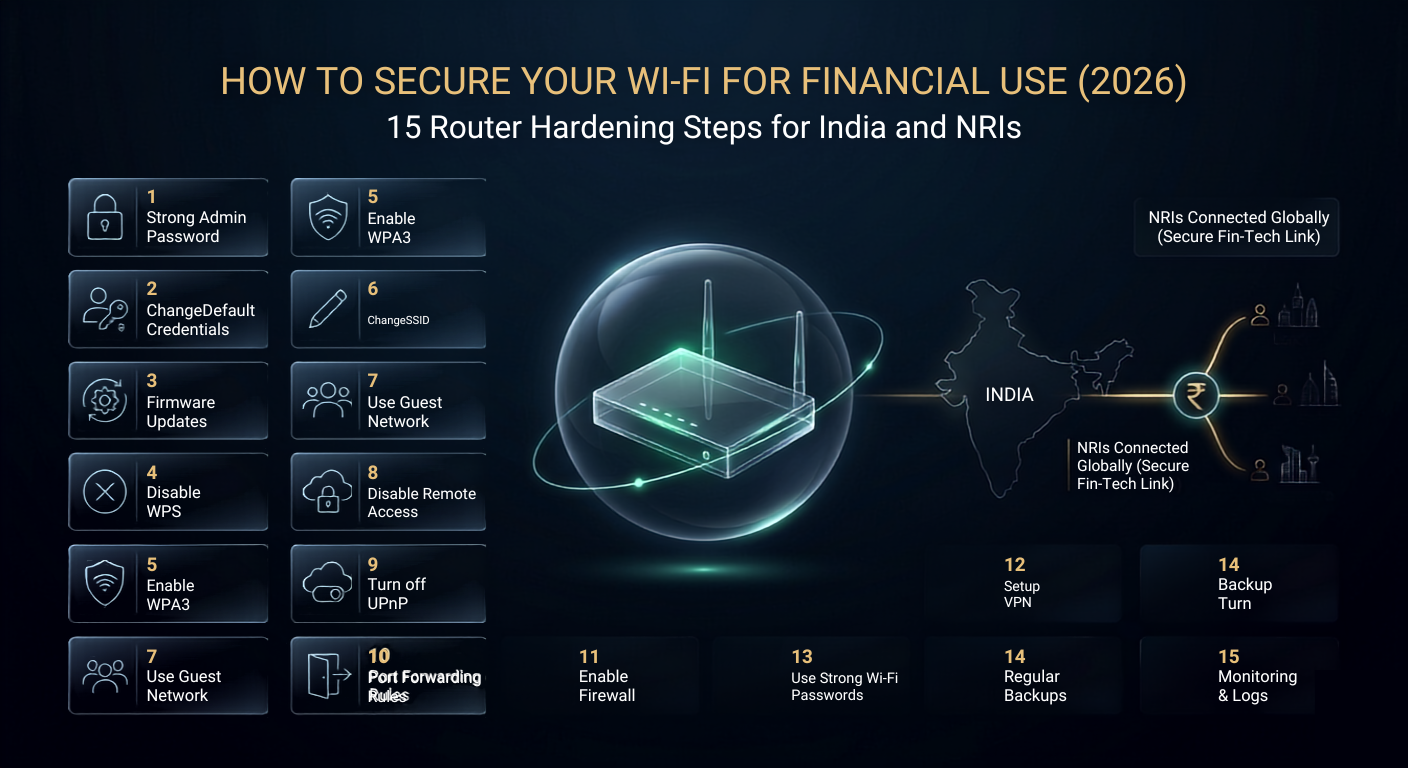
your router is the single point that every banking session, UPI transaction, and OTP passes through before it ever reaches your bank — which makes it as important to secure as the apps themselves, not an afterthought behind them. The fifteen steps in this guide work in layers: changing the default password and disabling WPS close the two fastest entry points; WPA3 encryption and a strong, unique Wi-Fi password lock the signal itself; a separate guest network isolates risky IoT devices from your financial devices entirely; firmware updates, an enabled firewall, and disabled remote management close known software vulnerabilities; monitoring connected devices and hiding your SSID reduce your visibility to opportunistic attackers; and for NRIs, an active Indian SIM, a paid VPN, and careful router placement protect access from abroad. If the full list feels like too much at once, the five quick wins take twenty-five minutes combined and deliver most of the protection. Do those today. Your router deserves the same seriousness you already give your banking app — because functionally, it’s the same vault.